

Secure Remote Desktop Services with SSO and Network-Level Authentication
Project Overview
The purpose of this project is to deploy a secure Remote Desktop Services (RDS) infrastructure with single sign-on (SSO), network-level authentication (NLA), and isolated user environments, allowing employees to connect securely to corporate desktops with session control and login integration.
🎯 Goal: Provide internal teams with secure remote access to company resources through RDP, while enforcing authentication, session isolation, and role-based access.
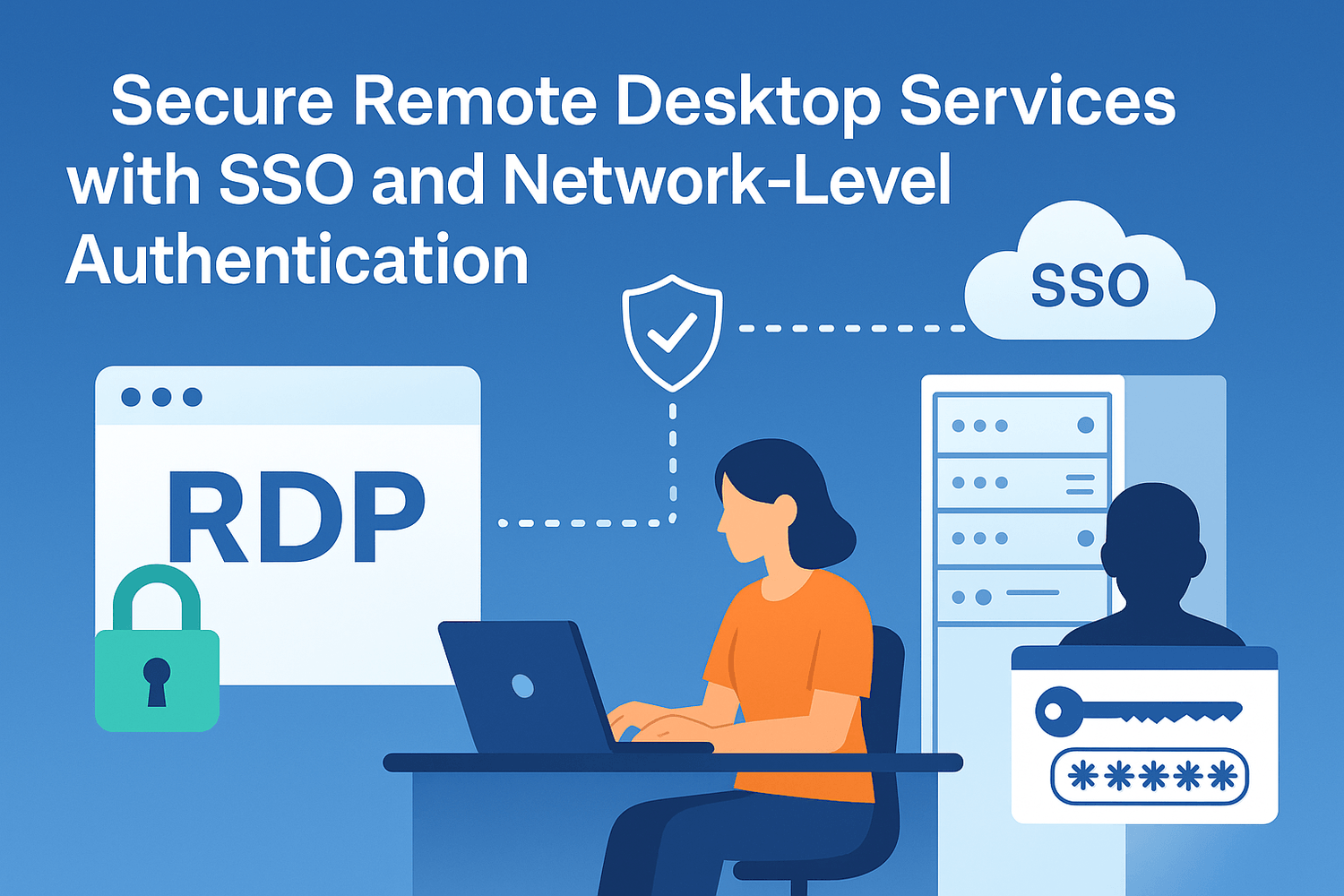
This project was implemented using Windows Server 2022, with clients running Windows 10 Pro.
All machines are joined to the domain entreprise.local.
VMware Workstation simulates the production environment.
Services include: Active Directory, DNS, GPO, and Remote Desktop Session Host (RDSH).
Sessions are limited by policy, with user isolation and automatic mapping of drives.
🧠 Supervision: Project validated under the guidance of Eric Mulumba Lukoji, Senior IT Architect with 15+ years of experience in Windows Server, identity federation, and remote access infrastructure.
Step 1 – Prepare the RDS Host Server
Goal: Create a clean server to host Remote Desktop sessions.
Actions:
Deploy a new VM named RDS01
Assign static IP: 192.168.10.20
Set DNS to 192.168.10.10
Join domain: entreprise.local
Rename server: RDS01
Enable Remote Desktop
Step 2 – Install Remote Desktop Session Host Role
Goal: Configure Windows Server to accept remote desktop sessions from users.
Actions:
On RDS01 ➜ Open Server Manager
Add Roles ➜ Install:
Remote Desktop Services
Remote Desktop Session Host
Restart server after installation
Step 3 – Configure Group Policy for NLA + SSO
Goal: Enforce secure authentication and seamless login.
Actions:
On DC01 ➜ Open Group Policy Management
Create GPO: GPO_RDS_Security
Scope: Apply to RDS01 only (security filtering)
Policy settings:
Computer Configuration ➜ Admin Templates ➜ System ➜ Credentials Delegation
→ Enable: Allow delegating saved credentials with NTLM-only server authentication
→ Add TERMSRV/*
→ Enable Allow delegating default credentials → TERMSRV/*Computer Configuration ➜ Windows Components ➜ Remote Desktop Services ➜ Remote Desktop Session Host ➜ Security
→ Require use of NLA: Enabled
→ Always prompt for password: Disabled
Step 4 – Limit Session Time and Enforce Isolation
Goal: Set time limits and session rules for better resource management.
Actions:
Edit GPO_RDS_Security
Go to:
Computer Configuration ➜ Admin Templates ➜ Windows Components ➜ Remote Desktop Services ➜ Remote Desktop Session Host ➜ Session Time Limits
Set:
End disconnected session after: 15 minutes
Active session limit: 1 hour
Disconnect idle session after: 30 minutes
Step 5 – Configure User Profile Isolation and Folder Mapping
Goal: Ensure each user has a unique environment + drive mapping on login.
Actions:
On RDS01, create user folder root in Powershell :
New-Item -Path "D:\Users" -ItemType Directory
Share the folder and set permissions to Domain Users
Edit GPO_RDS_Security:
User Configuration ➜ Admin Templates ➜ System ➜ User Profiles
→ Set Set roaming profile path for all users → \\RDS01\Users\%USERNAME%
Optional: Map shared drive on login:
bat
@echo off net use X: \\DC01\Shared
Add this script in User Configuration ➜ Windows Settings ➜ Scripts (Logon)
Step 6 – Test Remote Access with SSO and NLA
Goal: Validate secure remote login and session handling.
Actions:
From PC01, open mstsc
Connect to: RDS01.entreprise.local
Observe:
Login uses current credentials (SSO)
No password prompt
Session starts isolated
Session ends after timeout if idle
Drive X: mapped if configured
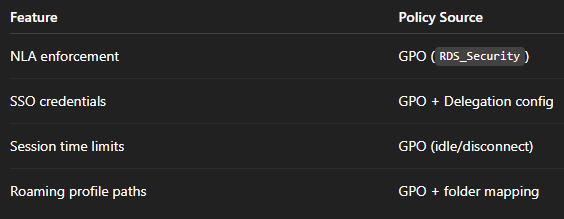
🔐 Security Policies Implemented
⚙️ Automation Tips
Set static IP and join domain via PowerShell:
New-NetIPAddress -IPAddress 192.168.10.20 -PrefixLength 24 -DefaultGateway 192.168.10.1 Set-DnsClientServerAddress -InterfaceAlias "Ethernet" -ServerAddresses 192.168.10.10 Rename-Computer -NewName "RDS01" -Restart Add-Computer -DomainName entreprise.local -Credential entreprise\admin
Apply GPOs faster:
gpupdate /force
Conclusion
This project shows how to build a real-world Remote Desktop Services infrastructure with:
Single Sign-On (SSO)
Network Level Authentication (NLA)
Session isolation per user
Time-limited access and roaming profiles
It ensures remote access is secure, controlled, and ready for audits, following enterprise-grade practices for small organizations.
Popular Projects
What is Cloud Computing ?
Cloud computing delivers computing resources (servers, storage, databases, networking, and software) over the internet, allowing businesses to scale and pay only for what they use, eliminating the need for physical infrastructure.
AWS: The most popular cloud platform, offering scalable compute, storage, AI/ML, and networking services.
Azure: A strong enterprise cloud with hybrid capabilities and deep Microsoft product integration.
Google Cloud (GCP): Known for data analytics, machine learning, and open-source support.
