

Endpoint Protection with Microsoft Defender and Threat Isolation
Project Overview
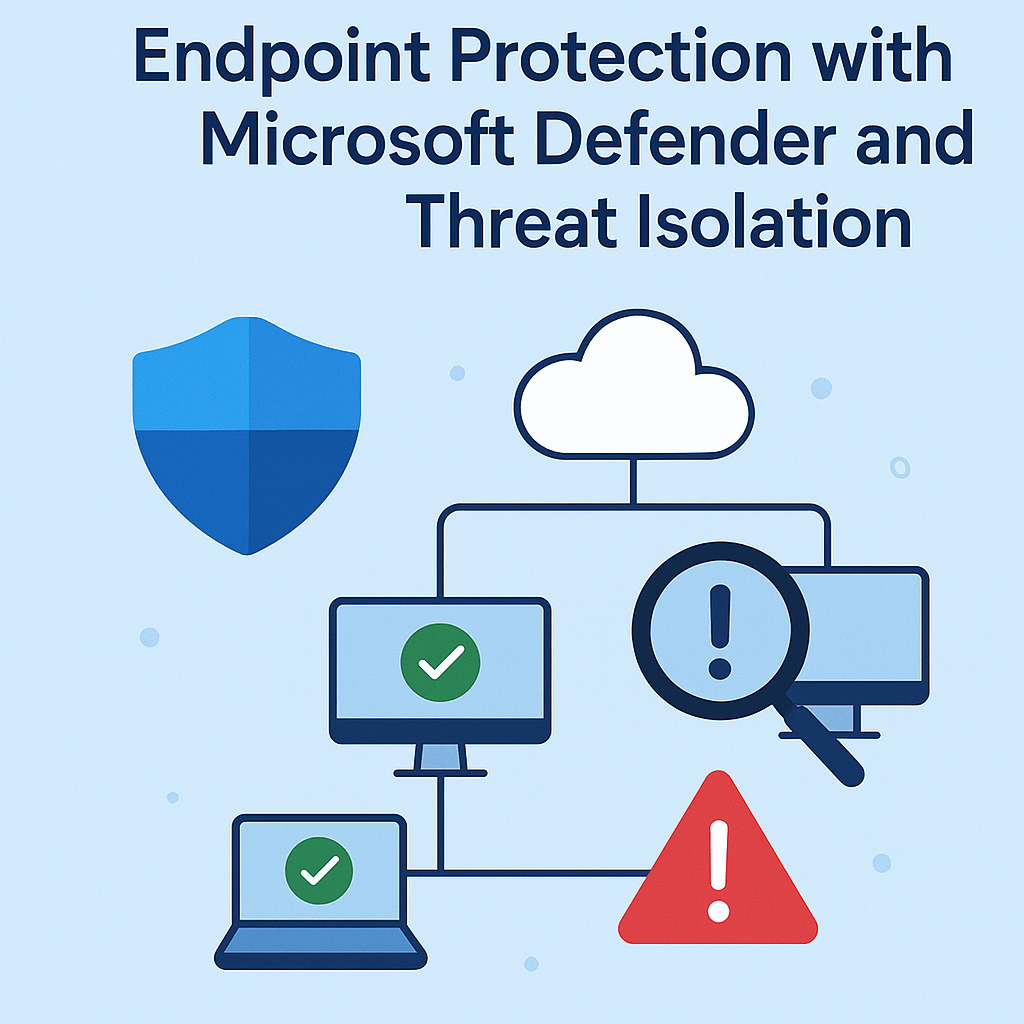
This project aims to configure enterprise-grade endpoint protection using Microsoft Defender for Endpoint, including real-time threat monitoring, policy enforcement, and automated device isolation in case of compromise.
🎯 Goal: Detect suspicious activities, contain infected devices, and secure user workstations across the company using Microsoft Defender and centralized policies.
This project is implemented in a small business environment using:
Windows Server 2019/2022 (with AD DS)
Windows 10/11 clients (domain-joined)
Microsoft Defender Antivirus (built-in)
Group Policy and PowerShell
All actions reflect real-world enterprise usage for endpoint defense and incident response.
🧠 Supervision: Project validated under the guidance of Eric, Senior IT Consultant (15+ years in cybersecurity and Windows infrastructure).
Step 1 – Enable Microsoft Defender via Group Policy
Goal: Ensure all endpoints run Microsoft Defender as their active antivirus.
Actions:
On the Domain Controller, open Group Policy Management
Create and link a new GPO: GPO_Defender_Enable
Navigate to:
Computer Configuration ➜ Policies ➜ Administrative Templates ➜ Windows Components ➜ Microsoft Defender AntivirusEnable:
Turn off Microsoft Defender Antivirus ➜ Disabled
Step 2 – Configure Real-Time Protection and Cloud Protection
Goal: Activate core security features to detect malware and suspicious behavior.
Actions:
Edit GPO_Defender_Enable
Go to:
Computer Configuration ➜ Administrative Templates ➜ Microsoft Defender Antivirus ➜ Real-time ProtectionEnable:
Turn on real-time protection
Monitor file and program activity
Also go to:
Cloud Protection ➜ Turn on cloud-delivered protection ➜ Enabled
Step 3 – Deploy Scheduled Scans and Notifications
Goal: Automate endpoint scanning and security alerts.
Actions:
Under the same GPO, configure:
Scan ➜ Specify the time for a daily quick scan
Reporting ➜ Display notification for all malware detections
🕒 Example scan time: Every day at 12:00 PM
Step 4 – Simulate Threats for Testing
Goal: Test detection and response using harmless test files.
Actions:
On a domain-joined client (e.g., PC01), run:
powershell
echo X5O!P%@AP[4\PZX54(P^)7CC)7}$EICAR-STANDARD-ANTIVIRUS-TEST-FILE!$H+H* > C:\Users\user1\Desktop\eicar.txt
🧪 This is the official EICAR test string, not a real virus. Defender should immediately detect and remove it.
Step 6 – Test Isolation Scenario
Goal: Verify that devices are quarantined after threat detection.
Actions:
Simulate a repeated high-risk threat using the EICAR test file
On Defender Security Center ➜ verify that PC01 is moved to "Isolated Devices"
Confirm that:
No network traffic is allowed (except to Defender cloud services)
Admins can still connect via RDP for remediation
Step 7 – Enable Endpoint Logging and SIEM Integration
Goal: Ensure logs are sent to a central log collector (Windows Server or Sentinel)
Actions:
Enable the following GPO settings:
Computer Configuration ➜ Administrative Templates ➜ Windows Components ➜ Microsoft Defender Antivirus ➜ Reporting
Enable: Send all reports to Microsoft
Optional: Forward logs to a SIEM via Sysmon or Defender APIs
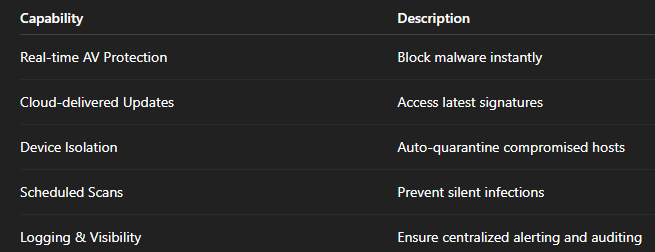
🔐 Security Capabilities Enabled
⚙️ Automation Tips
Tips
Force GPO refresh on clients in PowerShell:
gpupdate /force
Check Defender status via CLI in PowerShell:
Get-MpComputerStatus
Test GPO application in PowerShell:
gpresult /r
Conclusion
This project demonstrates how a small business can strengthen its cybersecurity using built-in Windows tools, while applying professional-grade methods:
Real-time threat detection
Automatic isolation of compromised endpoints
Centralized alerts and visibility
Validated testing on real clients (VM PC01)
This reflects a real-world enterprise scenario.
Popular Projects
What is Cloud Computing ?
Cloud computing delivers computing resources (servers, storage, databases, networking, and software) over the internet, allowing businesses to scale and pay only for what they use, eliminating the need for physical infrastructure.
AWS: The most popular cloud platform, offering scalable compute, storage, AI/ML, and networking services.
Azure: A strong enterprise cloud with hybrid capabilities and deep Microsoft product integration.
Google Cloud (GCP): Known for data analytics, machine learning, and open-source support.
