

Centralized File Server with NTFS Permissions and Group Policy Mapping
Project Overview
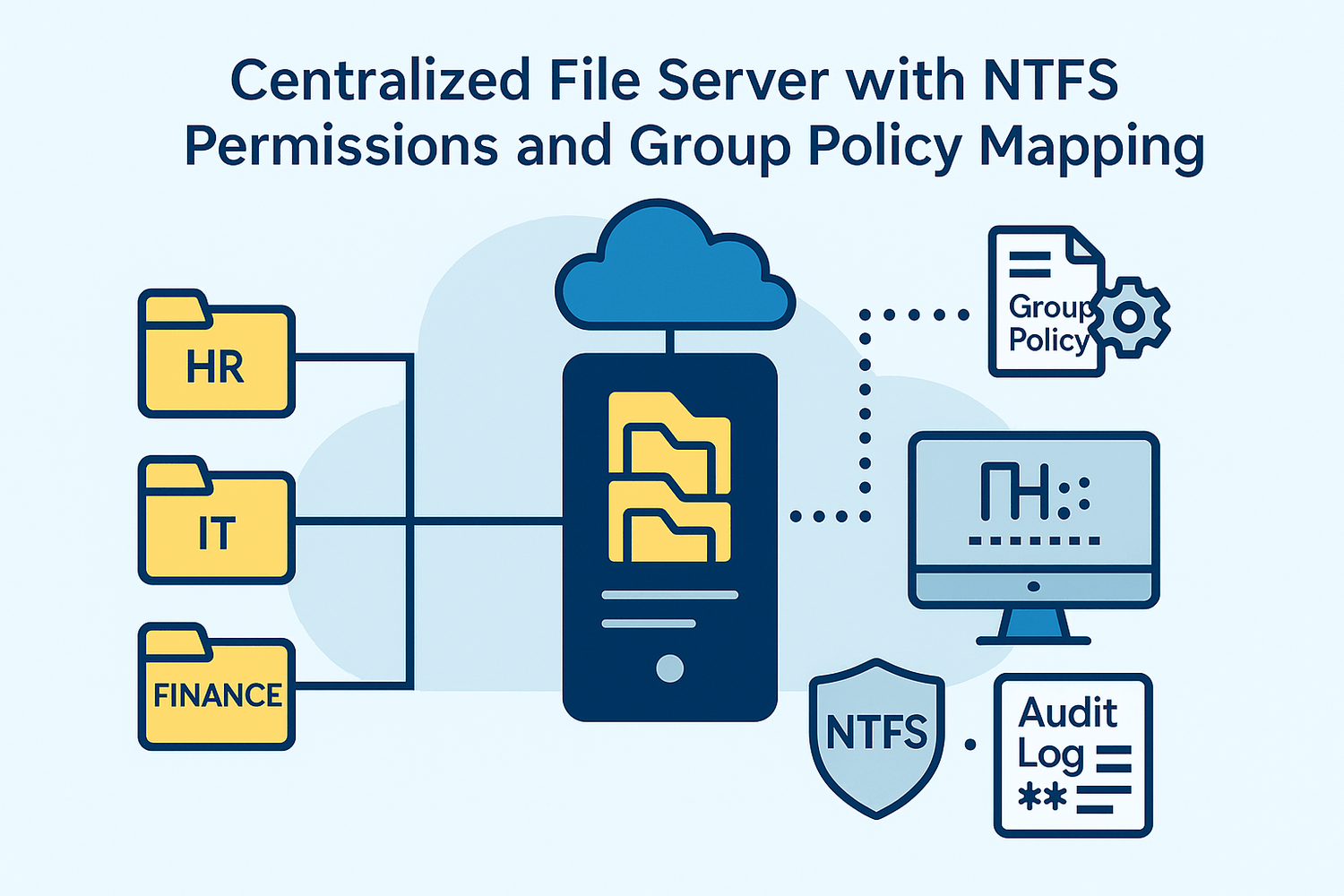
The purpose of this project is to deploy a centralized file server with:
NTFS-based security
GPO-based drive mapping
Audit-ready access logs
🎯 Goal: Build a secure, department-based file-sharing infrastructure ready for real enterprise audits.
Continues from entreprise.local domain (Project 1)
Involves departments: HR, IT, Finance
Users placed in proper OUs
File server: FS01, a member of the domain
🧠 Supervision: Project completed under the guidance of Eric Mulumba Lukoji, Senior IT & Cloud Architect.
Step 1 – Deploy and Join File Server (FS01)
Goal: Create the Windows Server file server and join it to the domain.
Actions:
Deploy FS01 on VMware
Set static IP: 192.168.10.20
DNS: 192.168.10.10 (DC01)
Rename PC to FS01
Join domain: entreprise.local
Step 2 – Create Departmental Shared Folders
Goal: Set up folders for each department with correct NTFS permissions.
Actions:
On FS01:
1. Create directories in PowerShell:
New-Item -Path "D:\SHARE\HR" -ItemType Directory New-Item -Path "D:\SHARE\IT" -ItemType Directory New-Item -Path "D:\SHARE\Finance" -ItemType Directory
2. Right-click D:\SHARE ➜ Share ➜ Everyone - Read
3. Set NTFS permissions (via Security tab):
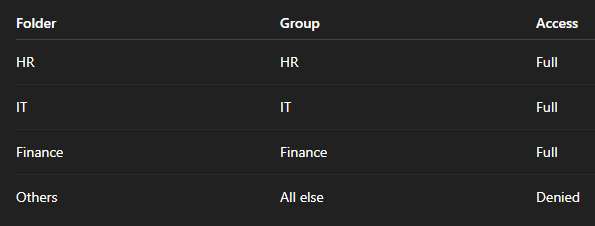
HR folder: Allow Full Control to group HR
IT folder: Full Control to group IT
Finance: Full Control to group Finance
Step 3 – Create Security Groups in AD
Goal: Map users to security groups for permissions.
Actions:
In ADUC:
Create groups: HR, IT, Finance
Add users accordingly in PowerShell:
Add-ADGroupMember -Identity "HR" -Members user1, user2 Add-ADGroupMember -Identity "IT" -Members user3 Add-ADGroupMember -Identity "Finance" -Members user4
Step 4 – Map Drives via GPO
Goal: Automatically assign drive letters to users based on department.
Actions:
Open Group Policy Management
Create GPO: GPO_Drive_Mapping
Edit GPO:
User Configuration ➜ Preferences ➜ Windows Settings ➜ Drive Maps
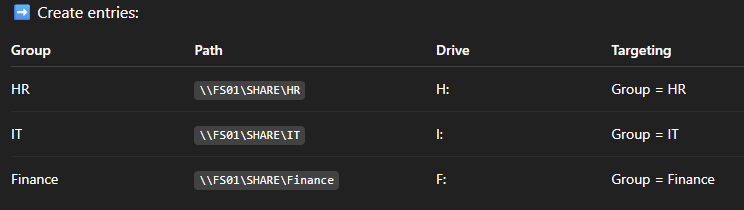
Enable item-level targeting → Security Group
4. Link the GPO to the Staff OU
Step 5 – Enable File Access Auditing
Goal: Log file access for compliance and audit.
Actions:
On FS01 ➜ Local Security Policy ➜ Audit Policy
➜ Enable: Audit Object Access (Success, Failure)Folder Properties ➜ Security ➜ Advanced ➜ Auditing ➜ Add:
Principal: Everyone
Access: Read, Write
Step 6 – Test Access from Clients
Goal: Confirm correct drive mappings and permissions.
Actions:
Log in as user1 (HR) on PC01
Verify H: drive is auto-mapped
Try accessing IT or Finance folder ➜ should be denied
Log in as user4 (Finance)
F: mapped
Access limited to Finance folder
🛡️Security Matrix
⚙️ Automation Tips in PowerShell
To map folders in bulk :
New-SmbShare -Name "HR" -Path "D:\SHARE\HR" -FullAccess "HR"
Update policy on client:
gpupdate /force
View logs:
eventvwr ➜ Windows Logs ➜ Security ➜ Event ID 4663
Conclusion
This project demonstrates a real-world file server setup with:
✅ Group-based access
✅ GPO drive automation
✅ Enterprise-grade auditing
It shows foundational system administration skills aligned with corporate security policies.
Popular Projects
What is Cloud Computing ?
Cloud computing delivers computing resources (servers, storage, databases, networking, and software) over the internet, allowing businesses to scale and pay only for what they use, eliminating the need for physical infrastructure.
- AWS: The most popular cloud platform, offering scalable compute, storage, AI/ML, and networking services.
- Azure: A strong enterprise cloud with hybrid capabilities and deep Microsoft product integration.
- Google Cloud (GCP): Known for data analytics, machine learning, and open-source support.
